Stavona 2 Arcade-Style Controller - Getting Started
Unboxing and Assembly
Take the controller out of the box and place it flat on a table. Take out the two Air-Strings and firmly insert each cable into its AIR port until you hear a click, which indicates that it is fully connected. Tuck any excess cable back into the controller. Secure the Air-Strings to the controller with the included thumb screws, then connect the controller to your computer using the included USB-B cable.
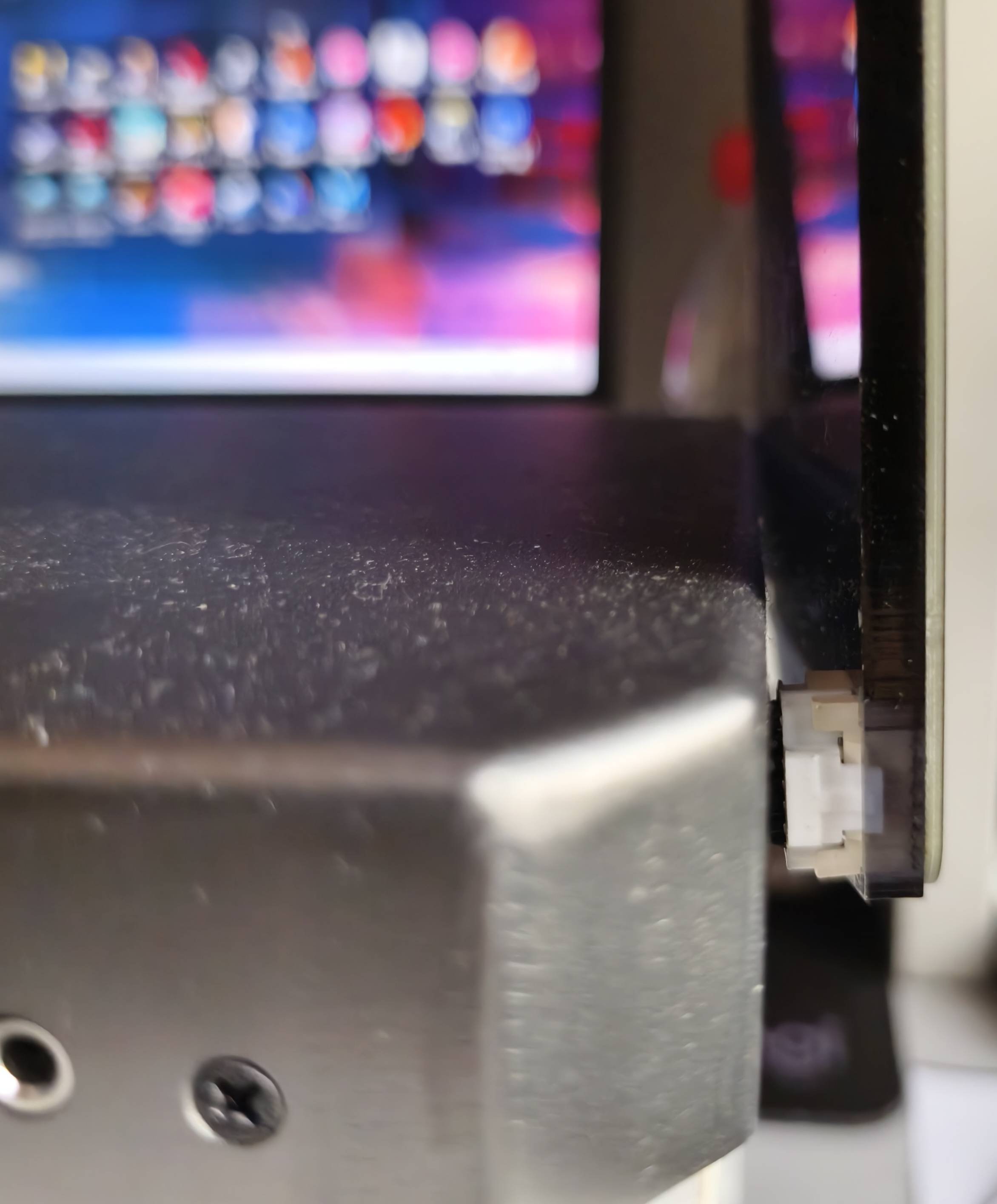
WARNING
Desktop users: Connect the controller to a USB port on the back of your computer.
Laptop users: Connect the controller directly to a USB port on your laptop.
Avoid using a USB hub or dock whenever possible, as it may cause unstable power delivery or communication.
A stable connection is essential for a good experience. Make sure the USB port can provide sufficient power.
Software Settings
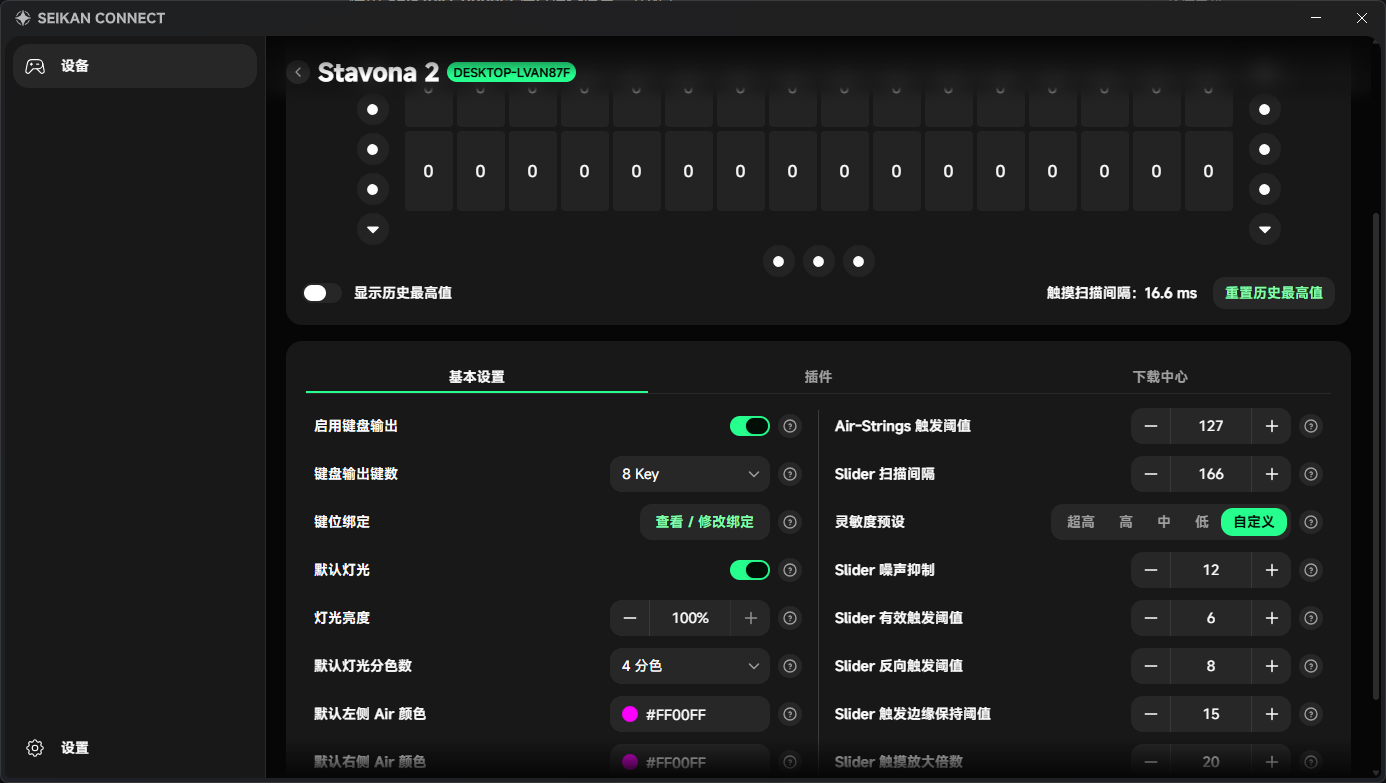
Use SEIKAN Connect to configure and update the device.
The available settings are shown in the application. Keyboard output is disabled by default, and the controller sends data only through HID. The SeikanIO_chuniio plugin is required to connect it to a game.
Software Update
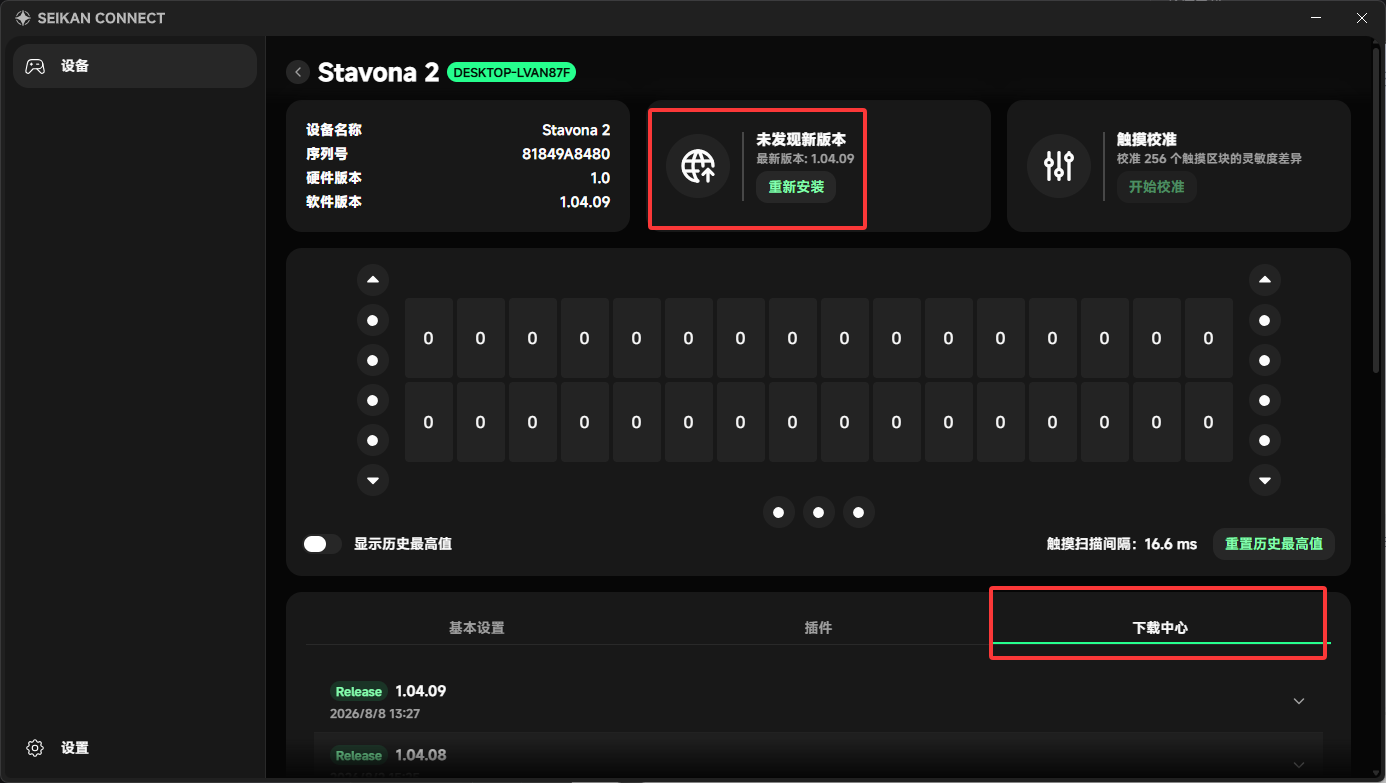
The software installed on the controller at the factory may not be the latest version, so we strongly recommend checking for updates after unboxing it.
Open SEIKAN Connect, go to the Stavona 2 page, and check whether the area outlined in red indicates that a new version is available. You can also open the Download Center manually to check for updates.
Warning: Disconnecting power while flashing the firmware or flashing the wrong firmware may damage the controller's circuitry. Proceed with caution.
Game Software Setup
For instructions on downloading and launching the game, visit Evil Leaker.
WARNING
This is not an official SEIKAN website. Evaluate its content at your own discretion.
The following instructions assume that you have already downloaded the game and completed the basic keyboard setup needed to launch it.
Installation with SEIKAN Connect
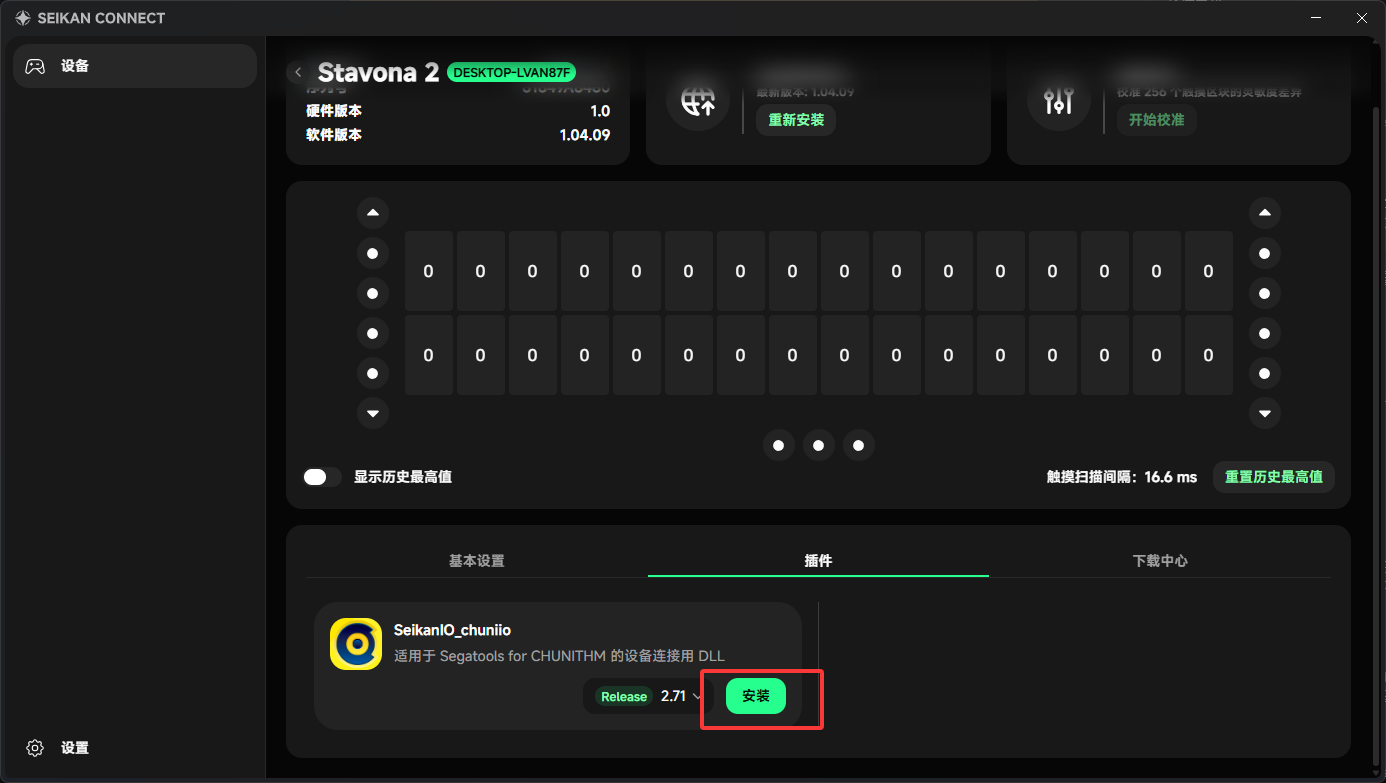
Open SEIKAN Connect, go to the Stavona 2 page, and click Install in the area outlined in red. Then select the segatools.ini file for the game in which you want to install the plugin.
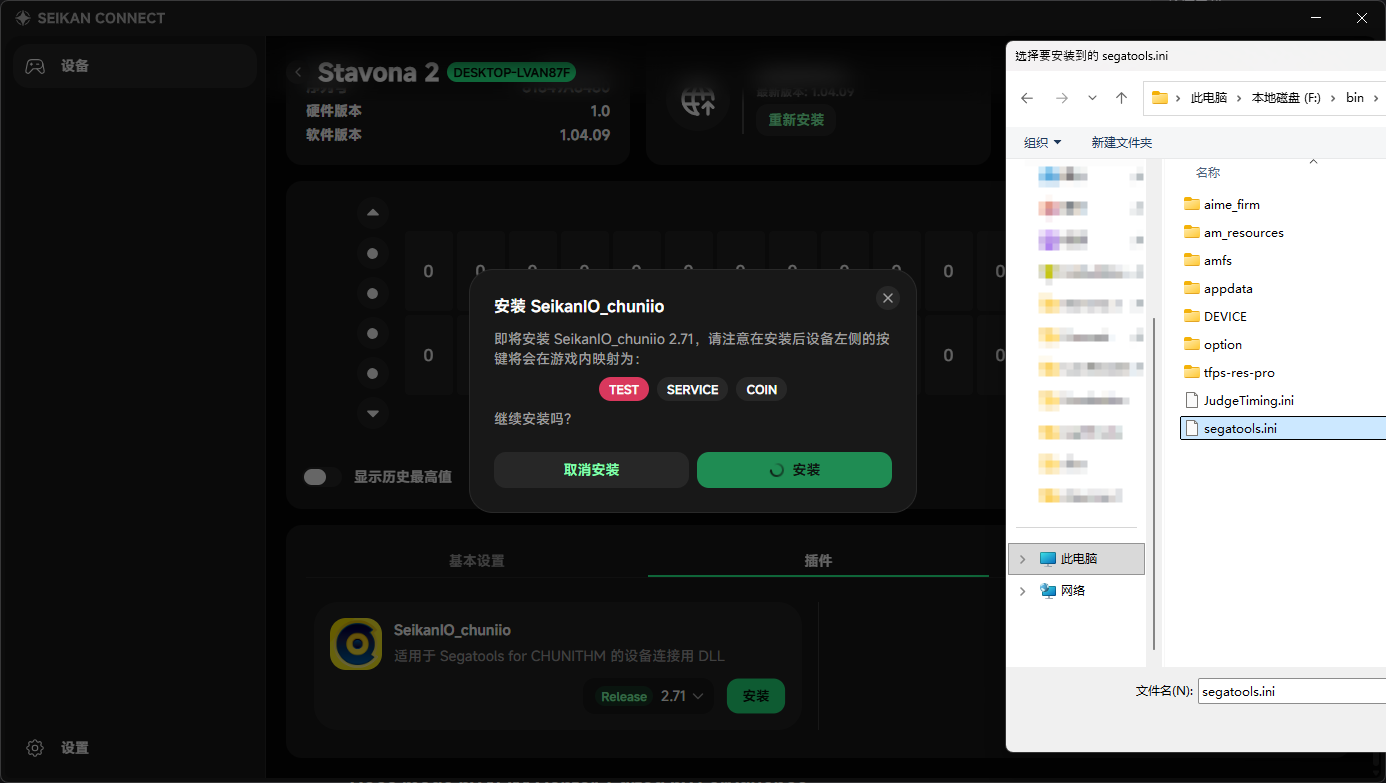
Once the following message appears, you can launch the game.

Enjoy your controller!